Overriding the default Devise’s views is simple and straight forward, what we need to do is just generate those views in our app/views folder by the following single command. Continue reading Rails – Customize Devise’s Views→
The following command could start the Rails daemon server for you Rails web application.
rails s
Stopping the web server could be done by simply enter the Ctrl + C command in the terminal. But if your terminal session is disconnected, you have no way to stop the service. In that case, you have to kill the process directly. Continue reading Rails – Stop the Rails Web Server by Command→
# By default, rails console run in development env
rails server

# Run in test env
rails server --environment test

# Run in production env
rails server --environment production
Last time we have integrated the RSpec and Autotest in Rails 3.
Rails – Integrate Autotest and RSpec in Linux
But it seems that it takes quite long for RSpec to complete the tests. This is because RSpec reloads the entire Rails environment for each run. Spork Test Server helps you preloading the Rails environment which greatly reduces the time for running the test suite.
I want to share a folder in my Ubuntu virtual machine to my Windows host. That folder contains the Rails applications such that i can edit them on the Windows host.
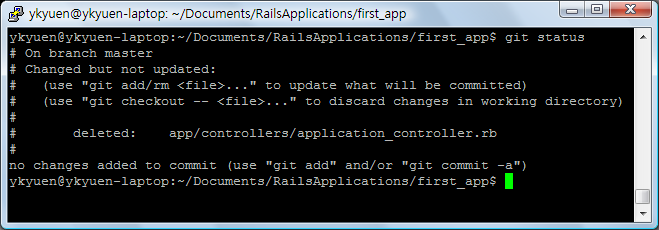
Rails project works well with Git. A .gitignore file can be found in a freshly created Rails project. It would be good to setup the local Git repository before you start the development.
As i want to develop a Rails application, i would like to have an editor like TextMate which i can use in Windows. It seems that Notepad++ would be a good option but it does not have a project explorer for me to switch the files.
Luckily, there is a Notepad++ plugin called Explorer where you can add the project explorer view.

 Eureka!