
I always think that building a good developing environment for developers are essential in terms of efficiency as well as quality. maven-jetty-plugin let you run the webapp without deploying the .war to Java web container and run debug mode directly in the Eclipse IDE.
I will shows you how to add and run the maven-jetty-plugin in the spring-mvc-trail project we built in
1. Add the maven-jetty-plugin in the pom.xml base on the above spring-mvc-trail project
<project xmlns="http://maven.apache.org/POM/4.0.0" xmlns:xsi="http://www.w3.org/2001/XMLSchema-instance" xsi:schemaLocation="http://maven.apache.org/POM/4.0.0 http://maven.apache.org/maven-v4_0_0.xsd">
	<modelVersion>4.0.0</modelVersion>
	<groupId>spring-mvc-trial</groupId>
	<artifactId>spring-mvc-trial</artifactId>
	<packaging>war</packaging>
	<version>1.0</version>
	<name>Spring MVC Trial</name>
	<description>Spring MVC Trial</description>

	<!-- Project properties -->
	<properties>
		<org.springframework.version>3.0.1.RELEASE</org.springframework.version>
	</properties>

	<!-- Build Configuration -->
	<build>
		<plugins>
			<plugin>
				<groupId>org.mortbay.jetty</groupId>
				<artifactId>maven-jetty-plugin</artifactId>
				<version>6.1.16</version>
				<configuration>
					<connectors>
						<connector implementation="org.mortbay.jetty.nio.SelectChannelConnector">
							<port>9090</port>
							<maxIdleTime>60000</maxIdleTime>
						</connector>
					</connectors>
					<requestLog implementation="org.mortbay.jetty.NCSARequestLog">
						<filename>target/yyyy_mm_dd.request.log</filename>
						<retainDays>90</retainDays>
						<append>true</append>
						<extended>false</extended>
						<logTimeZone>GMT</logTimeZone>
					</requestLog>
				</configuration>
			</plugin>
			<plugin>
				<groupId>org.apache.maven.plugins</groupId>
				<artifactId>maven-compiler-plugin</artifactId>
				<version>2.1</version>
				<configuration>
					<source>1.5</source>
					<target>1.5</target>
				</configuration>
			</plugin>
		</plugins>
	</build>

	<!-- Dependencies -->
	<dependencies>
		<!-- Spring framework -->
		<dependency>
			<groupId>org.springframework</groupId>
			<artifactId>org.springframework.core</artifactId>
			<version>${org.springframework.version}</version>
		</dependency>
		<dependency>
			<groupId>org.springframework</groupId>
			<artifactId>org.springframework.web</artifactId>
			<version>${org.springframework.version}</version>
		</dependency>
		<dependency>
			<groupId>org.springframework</groupId>
			<artifactId>org.springframework.web.servlet</artifactId>
			<version>${org.springframework.version}</version>
		</dependency>

		<!-- Other dependencies -->
		<dependency>
			<groupId>commons-logging</groupId>
			<artifactId>commons-logging</artifactId>
			<version>1.1.1</version>
		</dependency>
		<dependency>
			<groupId>javax.servlet</groupId>
			<artifactId>servlet-api</artifactId>
			<version>2.5</version>
		</dependency>
		<dependency>
			<groupId>junit</groupId>
			<artifactId>junit</artifactId>
			<version>4.8.1</version>
		</dependency>
	</dependencies>

</project>
2. Run mvn clean install
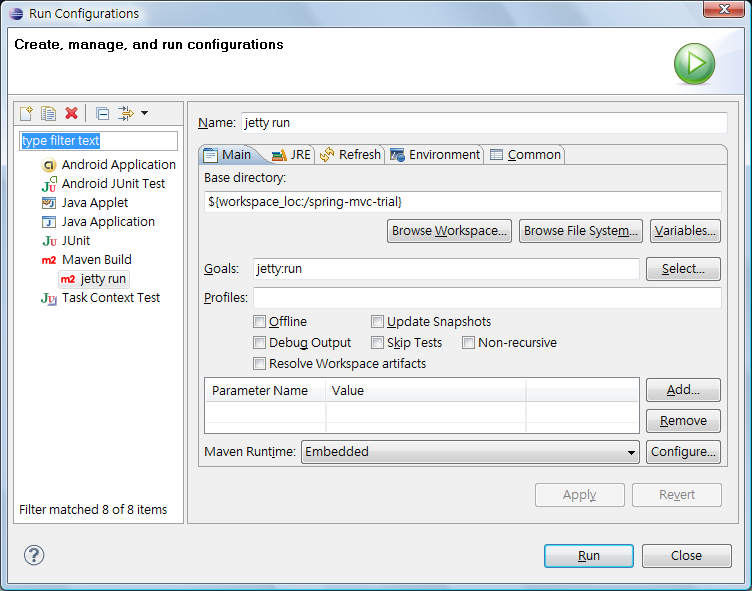
3. Create a new maven build in Eclipse Run Configuration as follow OR run mvn jetty:run at your project directory which contains the pom.xml in the shell prompt
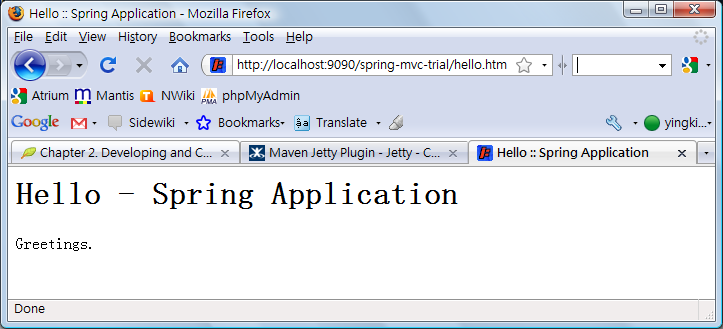
4. Open the http://localhost:9090/spring-mvc-trial/hello.htm in browser
5. The log written in the HelloController.java to stdout should be printed in the console
...
[INFO] Started Jetty Server
2010-03-01 22:39:56.922::INFO:  Started SelectChannelConnector@0.0.0.0:9090
2010/3/1 下午 10:42:18 springapp.web.HelloController handleRequest
資訊: Returning hello view
stdout - Returning hello view
6. You can also find the requests log at /target as configured in the pom.xml
Done =)
Reference: Maven Jetty Plugin Configuration Guide

 Eureka!
Thanks for the nice example.
Helped a lot.
LikeLike
you are welcome =)
LikeLike
Thanks for the tutorials. You just helped me climb the Java/Eclipse/Maven/Spring/MVC ladder in a major way! I have been trying to learn to build REST web services using SpringMVC by reading this series (http://www.baeldung.com/rest-with-spring-series/), but my knowledge of the fundamentals wasn’t up to the task. With the help of your tutorials I am heading back to give Eugen Paraschiv’s tutorial another read.
Many thanks!
LikeLike
I am so glad to receive your comment. It is the best energy source which motivates me to continue blogging. =D
LikeLike
Thanks so much
LikeLike
Good to know that i could help. =)
LikeLike
Thank so much for these explanations. It was so helpful for me !
Could you please tell me how can I change Jetty port (9090)
thanks in advance
LikeLike
Search
in the pom.xml.
LikeLike
Thank you so much
LikeLike
you are welcome. =)
LikeLike